This is a blog that has been a long time coming. I decided to write this material to supplement and support the 2 Avery heat transfer videos on YouTube. I hope this will clear up some of the confusion caused by the videos themselves. Granted, all of the following information is in the video either as annotations or related directly to you by me in the video. Even still, I am asked very simple questions on the matter and it seems some of the same questions are being asked over and over. So here we go…
 First off let me say that the Avery heat transfers for light garments or tee shirts will not work on black or dark colored shirts. The transfers made for light garments lack the opacity to cover black or dark fabrics. Remember, standard computer printers do not print white. Therefore the digital transfer does not have any white in the image. The white in the image will come from the white or light colored garment. On a black shirt the image would be missing all white information in the design and the colored inks will not have the opacity to cover the dark fabric. Therefore a heat transfer for light garments applied to a dark shirt will almost disappear into the black fabric.
Now lets talk about the ghosting effect or the “halo”. It is the nature of the beast for inkjet or laser heat transfers to apply the polymer adhesive to the garment even in the areas where there isn’t any image printed. Now there are some “self weeding” transfer papers that will only transfer the adhesive where the inkjet ink or laser toner is. Those are 2 part processes in which the adhesive is transferred to the actual heat transfer right before you press the shirt. The result is a transfer that can do text and free floating objects without having a “halo” of adhesive through out the negative space. However, the Avery heat transfers for light garments are not self weeding and will leave polymer adhesive anywhere you do not have an image and haven’t trimmed the paper. So what is the best design type to use?
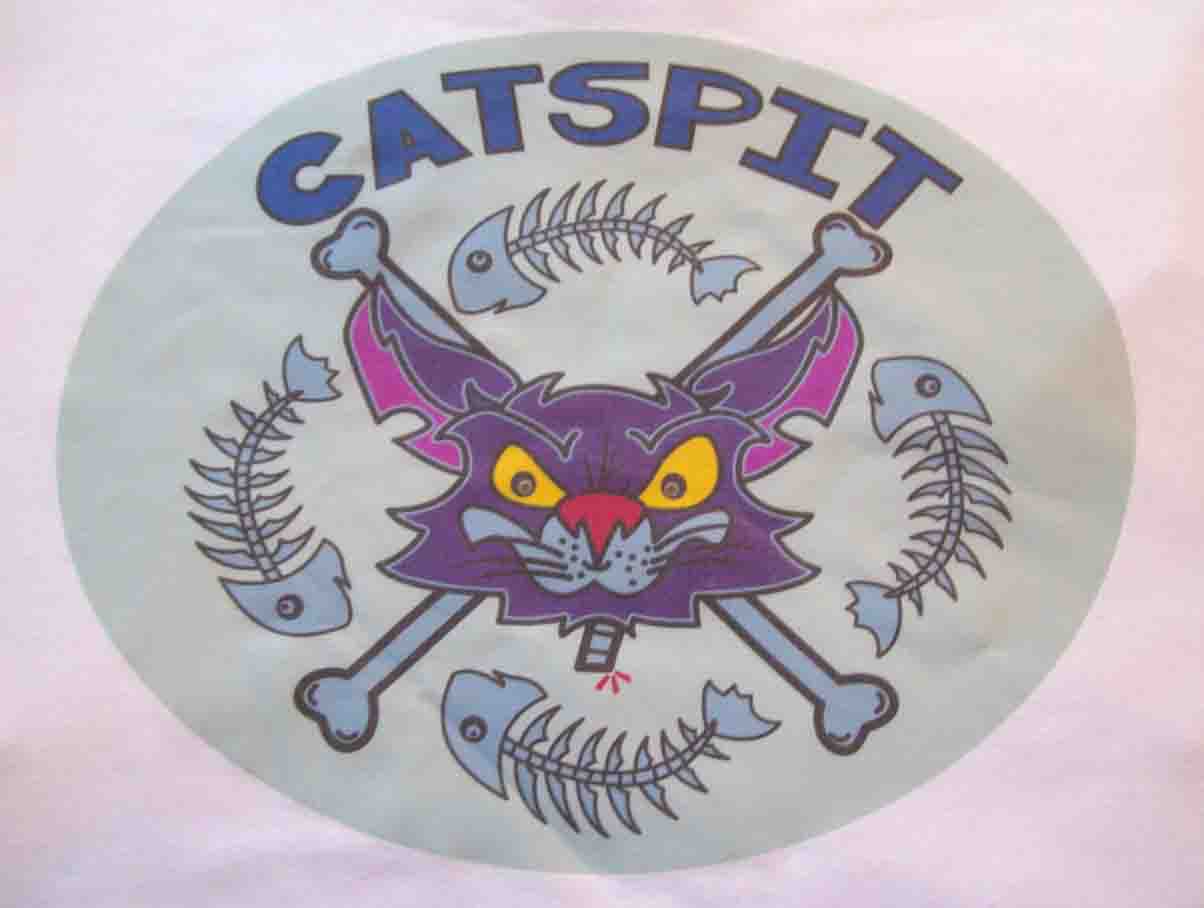
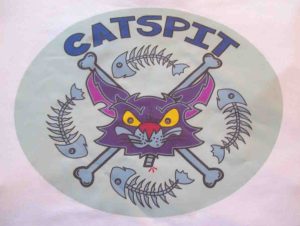 Any type of design that can be contained in a solid shape is perfect. Free floating text or design elements with intricate line work and a lot of negative space will not work so well with standard digital heat transfers for light garments. In the image to the left you can see how I took a design with a lot of negative spaces throughout the image and placed a solid shape in the background. I did this because it would have been extremely time consuming to sit there and cut out all of the negative space in this design. And that would have separated much of the transfer from itself as well. Since this was a prototype for me to get some feedback on the design, it worked out just fine for me. But when you create your artwork for standard heat transfers for light garments, it is critical to take this into account. If you can design the artwork to work with the limitations of the transfer process, you can make some really cool shirts at home.
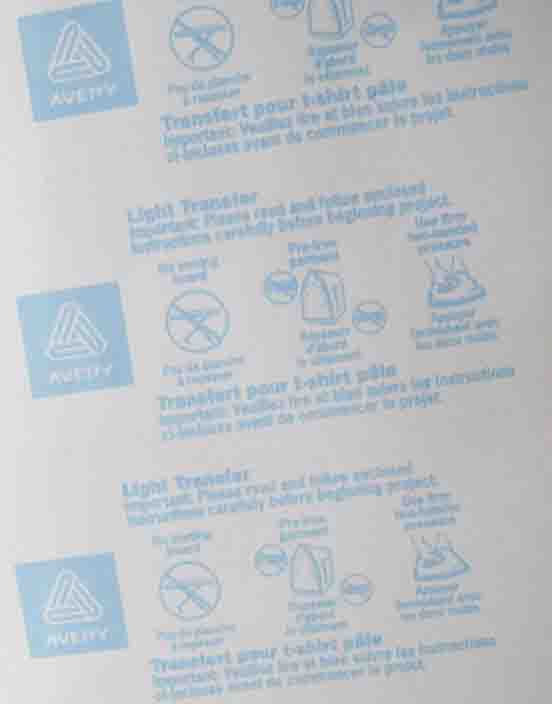
 At this point it is important to note that inkjet transfer papers will not work in laser printers and visa versa. There is also a side to print onto with the computer printer and a side that you do not want to print onto. Most transfer papers will be well marked on the back side to let you know not to print that side. Here you can see the back side of the Avery heat transfer paper for light garments. It is possible to get professional papers that may not be marked as well. But you should be able to tell the difference by feeling the paper. One side should feel rubbery or soft; this is the print side. The other side should feel pretty much just like ordinary paper; this is the back side which you do not print. Once you have this all settled, you can start to think about the printer settings.
The first thing you need to do when you print a design onto transfer paper is to reverse or mirror the image. This can be done one of 2 ways. First, you can simply do it in the graphic software you use to create the design. Or you can actually do it through the print dialogue when you go to print. Most computer printers will have a setting for transfers. It will be either called “transfer” or something of that nature. If you are unsure, consult your printer manual for details on the printer settings and functions. I prefer to do the reversal in the software before I print it. That way I can set the printer settings to reflect the quality and ink saturation I want for the transfer paper. I normally will use a setting like “Photo Paper Pro” or “Presentation Paper Matte”. Again this setting will depend on the brand printer you have but it is good enough to use the highest quality printer setting for best results. Just remember that different quality printer settings may affect the color of the design slightly too.
Once your transfer paper is printed, it is a good idea to let the transfer set for an hour. This will allow the transfer to become a little more stable to work with especially when trimming. If you use scissors to trim the edges be carful not to scrape the point of the scissors inside the design area as you cut around it. That may damage or scrape off the transfer layer of the transfer paper. Any damage or imperfections in the transfer itself will show up pretty much as they are on the shirt, just reversed. So be very careful when trimming or handling the printed transfer.
You will want to trim the paper as close to the design edges as possible. Leaving a very small white edge around the image will be fine. That “halo” will be barely visible as a ring around the design. Just keep it as small as humanly possible. You can use scissors, box knives, razors and or Exacto blades to trim the printed transfer. Now you are ready to press the transfer to the shirt using an iron or heat press.
This is where we should talk about the heat application of your transfer. The Avery inkjet heat transfers featured in the Catspit Productions YouTube videos are made for usage at home with an iron. However, the quality of your transfer depends greatly on the application. You can use an iron with these transfers but if you use a heat press the transfer quality, durability and longevity will be greatly enhanced and increased. The amount of heat and pressure that the heat press applies is far greater than that of a household iron. In fact I say that using a good working heat press with any transfer material will improve the quality of the transfer material’s performance. Thus making it look better and last longer.
I hope this helps clear up some things about the Avery inkjet heat transfers for light garments. Also remember to read the instructions on the package because some of them are hot peels while others are cold peels. Here are the links to the Avery heat transfer videos on YouTube:
How To Screen Print: T Shirt Heat Transfers At Home #1
How To Screen Print: T Shirt Heat Transfers At Home #2
How To Heat Transfer Tee Shirts
Thanks for reading! Learn how to screen print with Catspit Productions, LLC.